Books
You can use Library Search to find physical books and ebooks. Begin by typing the title of your book into the search box. You can place quotation marks around your book title to search for an exact phrase.

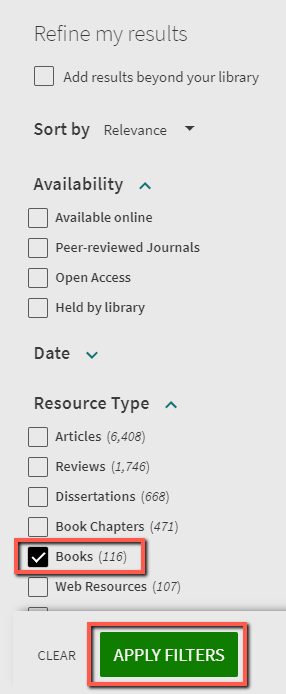
From the search results, use the filters on the left side of the screen under Refine my results to limit your search to find only books. Under the filter Resource type, check the box in front of Books then click on the green button labeled Apply Filters. If you don’t see an option for books, you may have to click on Show More to see all of the resource types available.
E-books
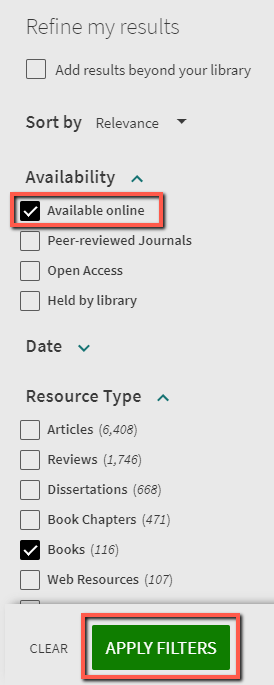
If you want to find a specific e-book, you can further narrow your book search by putting a checkmark in the box before Available online under the Availability filter, after following the steps above. Then click the green Apply Filters button.
Browsing for books
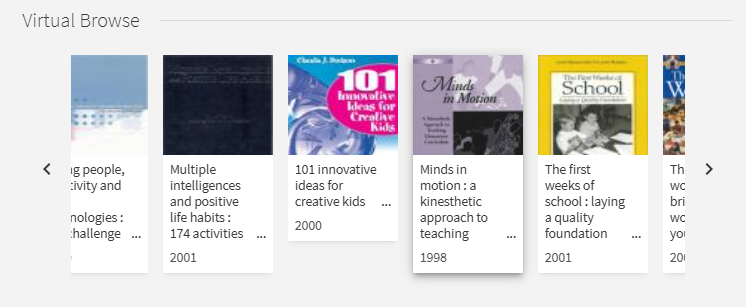
Once you find a book of interest, you can find the physical book and browse that section for other books on the same topic, or you can click on the title in Library Search and scroll down to Virtual Browse to see similar titles. Alternately, you can click on one of the subjects listed under Details to run a new search on that subject.
Using call numbers to find physical books
To find a physical book in the library, you will need the location and call number. In the example below, the term Book Stacks indicates that the book is located on the library shelves.
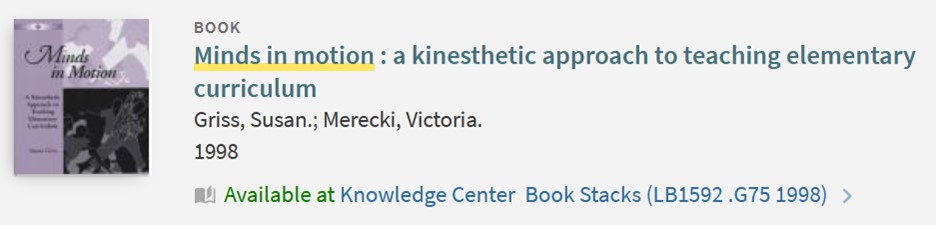 Screenshot of the book “Minds in Motion: A Kinesthetic Approach to Teaching Elementary Curriculum,” with information stating that it is available at Knowledge Center Book Stacks (LB1592.G75 1998).
Library floor maps will help guide you to the correct building and floor the book is located on. To locate your book, read the call number one row at a time.
You can also browse books in the stacks by subject using this subject guide.